
 Stream
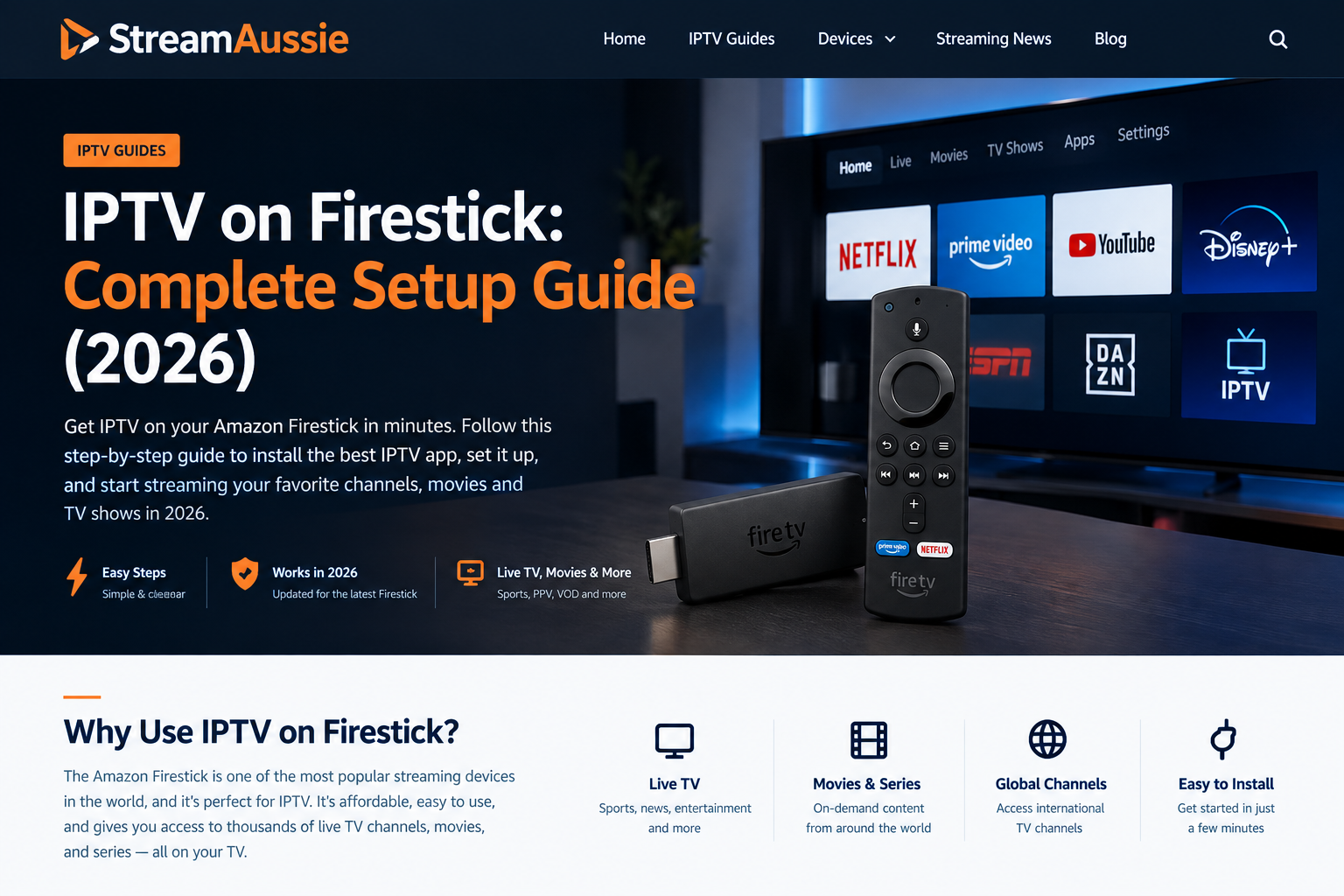
IPTV on Firestick: The Complete 2026 Setup Guide
Everything you need to install IPTV on a Firestick, get it running cleanly on an Australian NBN connection, and — just as important — check that whichever IPTV provider you use is one you can trust before you hand over a subscription.
What Is IPTV, and Why Firestick?
IPTV stands for Internet Protocol Television — it simply means TV channels and on-demand video delivered over an internet connection rather than through a satellite dish, cable box, or free-to-air aerial. Every major streaming platform you already know, from Foxtel Go to Kayo to Netflix, is technically a form of IPTV. The term is mostly used to describe the broader category of live-channel IPTV players and playlists rather than any single service.
Amazon's Fire TV Stick has become one of the most common devices for running IPTV apps because it's inexpensive, plugs directly into any HDMI port, runs a full Android-based app environment, and supports both official Appstore apps and sideloaded ones. That flexibility is exactly why "IPTV on Firestick" is such a common search — the hardware itself is capable of running almost any IPTV player you choose, official or otherwise.
Is IPTV Legal in Australia?
This is the question worth answering properly rather than glossing over, because the honest answer has two parts.
The technology is legal. Streaming live channels over the internet is exactly how licensed Australian services such as Foxtel Go, Kayo Sports, Binge, and 7plus already operate. There is nothing inherently illegal about an "IPTV app" or a Fire TV Stick.
Legality depends entirely on the content rights behind the service you use. A provider is only operating lawfully if it actually holds — or has properly sub-licensed — the broadcasting rights to the channels and sport it distributes. Live sport in particular (NRL, AFL, the Premier League, UFC, PPV boxing) is expensive to license precisely because the rights holders charge for it. If a service is selling access to that content at a fraction of what licensed broadcasters charge, that's a signal worth taking seriously, not dismissing.
What You Need Before You Start
- A Fire TV Stick — any current model (Stick, Stick 4K, Stick 4K Max) or Fire TV Cube.
- A stable internet connection — at least 10 Mbps free bandwidth for HD, 25 Mbps for 4K.
- An Amazon account signed into the Fire TV Stick.
- An active IPTV subscription or playlist from a provider you've already vetted (see the checklist further down before you pay anyone).
- An IPTV player app — general-purpose players like IPTV Smarters Pro, TiviMate, or an official app from your chosen provider all work on Fire TV.
How to Install IPTV on a Fire TV Stick in Australia
The process to install IPTV on a Fire TV Stick in Australia is the same regardless of state or NBN provider — only your internet speed and, of course, which IPTV service you connect to will differ. Here's the full walkthrough.
Update your Fire TV Stick
Go to Settings → My Fire TV → About → Check for Updates and install any pending software update. Running the latest Fire OS version fixes most playback and app-compatibility issues before you even start.
Decide: Appstore app or sideload?
If your chosen IPTV player is listed in the Amazon Appstore, search for it directly from the Fire TV home screen and install it like any other app — no extra steps needed. If it isn't listed, you'll sideload it using the Downloader app (step 3).
Enable Apps from Unknown Sources (sideloading only)
Go to Settings → My Fire TV → Developer Options and turn on Apps from Unknown Sources. Then install the free Downloader app from the Appstore and use it to download your IPTV player's APK file from the developer's official site.
Install your IPTV player app
Open the app once installed. Most IPTV players will ask for either a username/password, an M3U playlist URL, or a Xtream Codes API address — your provider supplies whichever format their service uses, usually by email straight after payment.
Load your channel list
Enter the credentials or playlist URL exactly as provided. The app will download the channel list and electronic programme guide (EPG) — this can take a minute or two on a first load, especially with a large channel count.
Test playback and organise favourites
Play a few channels across categories (news, sport, entertainment) to confirm everything loads cleanly, then use the app's favourites or groups feature to keep the channels you actually watch easy to find.
Optimising IPTV for Australian NBN Connections
IPTV is more sensitive to connection quality than standard streaming because it's a continuous live feed rather than a buffered file, so a few NBN-specific adjustments make a real difference:
- Use Ethernet where possible. A wired connection to your router all but eliminates the Wi-Fi interference that causes freezing during peak evening hours.
- If you're on Wi-Fi, use the 5GHz band rather than 2.4GHz — it's faster and less congested by neighbouring networks, though it has shorter range.
- Check your NBN plan speed against your usage. An NBN 25 or 50 plan is usually fine for a single HD stream; households running multiple 4K streams, gaming, and video calls at once should look at NBN 100 or above.
- Restart your modem/router periodically. ISP-side IP or DNS issues are a surprisingly common cause of "channel won't load" errors that a restart resolves instantly.
- Close background apps on the Fire TV Stick. Entry-level Stick models have limited RAM, and other open apps can cause stuttering during 4K playback.
Fixing Common IPTV Firestick Problems
| Symptom | Likely cause | Fix |
|---|---|---|
| Constant buffering | Insufficient bandwidth or Wi-Fi interference | Switch to Ethernet or 5GHz Wi-Fi; test your speed against the provider's minimum |
| App crashes on launch | Outdated app version or low storage | Update the app; clear cache via Settings → Apps; restart the Stick |
| Channels won't load / blank screen | Provider server issue or expired credentials | Confirm your subscription is active; contact the provider's support |
| EPG (guide) missing or wrong | Guide data still syncing, or provider EPG down | Wait a few minutes after first load; reload the playlist |
| Audio out of sync | HDMI handshake or app decoding issue | Unplug/replug HDMI; try a different playback engine in app settings if available |
How to Evaluate Any IPTV Provider Before You Subscribe
This is the step most guides skip, and it matters more than any setup instruction. A Fire TV Stick will happily play whatever you point it at — it has no way of telling you whether the service behind it is legitimate. That check is entirely on you, before you pay.
- Provider clearly states which broadcaster or rights holder it's licensed through, not just "we test our channels"
- A real business name, ABN, and contact details you can verify independently
- Pricing that's competitive but plausible — not premium sport and every major broadcaster bundled for a few dollars a month
- Transparent refund and cancellation terms published in full, not just referenced
- Independent reviews outside the provider's own website and testimonials
- A support channel that existed before you paid, not one that only appears afterwards
- Avoid: vague answers to "is this legal" that never confirm licensing
- Avoid: pressure to pay by bank transfer or crypto only, with no other option
- Avoid: reseller/credit schemes that let anyone resell subscriptions with no vetting
If a provider can't (or won't) answer "who licenses you to distribute this content" with something concrete, treat that as your answer.
Frequently Asked Questions
Can you get IPTV on a Firestick?
Yes. A Fire TV Stick runs Android-based apps, so it can install any IPTV player available through the Amazon Appstore or sideloaded via the Downloader app, then connect to whichever IPTV subscription or playlist you provide it with.
Is IPTV legal in Australia?
IPTV as a delivery technology is legal — it's the same method used by licensed services like Foxtel Go and Kayo. Legality depends entirely on whether the specific provider holds the broadcasting rights to the channels and sport it sells. Using a provider that doesn't hold those rights can carry legal and financial risk for the subscriber, not just the seller.
Do I need to sideload anything to install IPTV on a Fire TV Stick?
Not necessarily. Many IPTV player apps are available directly in the Amazon Appstore. Sideloading is only needed for apps that aren't listed there, and it requires turning on "Apps from Unknown Sources" in Fire TV settings.
Why does my IPTV keep buffering on Firestick?
Buffering is usually caused by insufficient internet speed at peak times, a Wi-Fi signal that's too weak, an overloaded provider server, or a Fire TV Stick model that's underpowered for 4K streams. A wired connection, the 5GHz Wi-Fi band, and testing your connection speed against the provider's minimum requirements resolve most cases.
How much internet speed do I need for IPTV in HD or 4K?
As a general guide, budget at least 10 Mbps of stable, dedicated bandwidth per HD stream and at least 25 Mbps per 4K stream, with extra headroom if other devices are using the connection at the same time.
What's the difference between an IPTV app and an IPTV provider?
The app (IPTV Smarters, TiviMate, and similar) is just a player — it's neutral software that displays whatever channel list you feed it. The provider is the business supplying that channel list and, crucially, whoever holds (or doesn't hold) the rights to the content in it. Choosing a good app doesn't say anything about whether the provider behind it is legitimate.
Key Takeaways
Installing IPTV on a Fire TV Stick is a straightforward, five-minute process once you have a playlist or login from a provider — the hardware and apps involved are not the part that carries risk. The part worth real diligence is which provider you trust with your payment details and your household's viewing: check what rights they hold, look for a verifiable business behind the service, and treat pricing that looks too good against the going rate for premium sport as a question to ask, not a bonus to grab.